Using Claude Code for VS Code with AI-VERDE
Claude Code for VS Code is Anthropic's official extension for using Claude Code within VS Code. AI-VERDE can serve as the backend for the extension through AI-VERDE's Anthropic-style API, routing requests through AI-VERDE's budget controls and guardrails.
Tip
If your course or team's Claude models are hosted on AWS Bedrock, we recommend the Bedrock-style setup instead. Ask your instructor or team lead if you're unsure where your models are hosted.
Prerequisites
- Your AI-VERDE course or team must be configured to use Anthropic models (see instructor or team lead).
- Obtain your AI-VERDE API key. Instructions can be found here.
- Note the model names for the Opus, Sonnet, and Haiku models available to your course or team. Instructions for listing available models can be found here. Model names in AI-VERDE are prefixed with an identifier for your course or team, separated by a dash or a slash (e.g.
my-team-claude-sonnet-5ormy-team/claude-sonnet-5). Anthropic's public model IDs (e.g.claude-sonnet-5) will not work. - Install VS Code. Instructions can be found at https://code.visualstudio.com/download.
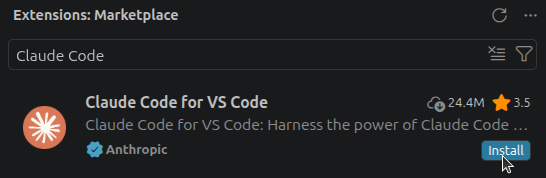
1. Install the "Claude Code for VS Code" extension from Anthropic
Within the extension marketplace, a simple search for "Claude Code" yields the desired extension.
2. Configuring "Claude Code for VS Code" extension
Go to the extension page.
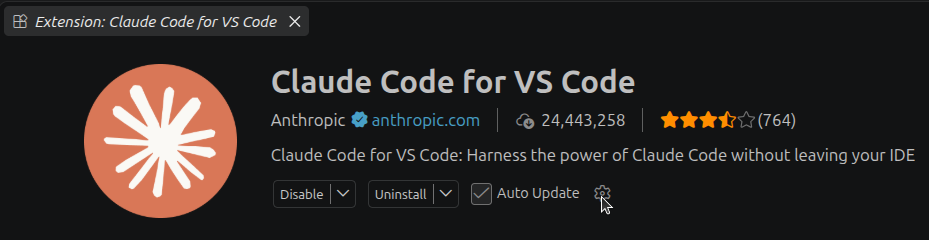
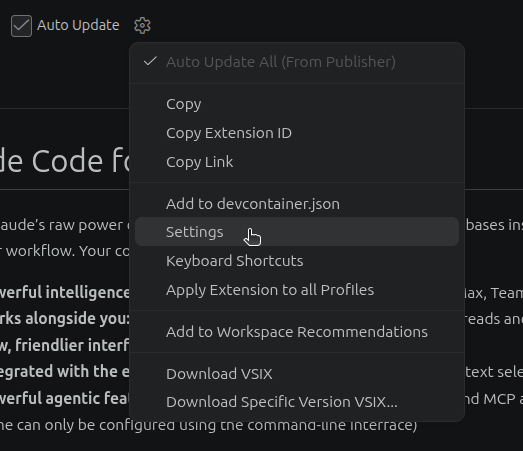
Click on the gear icon and select "Settings".
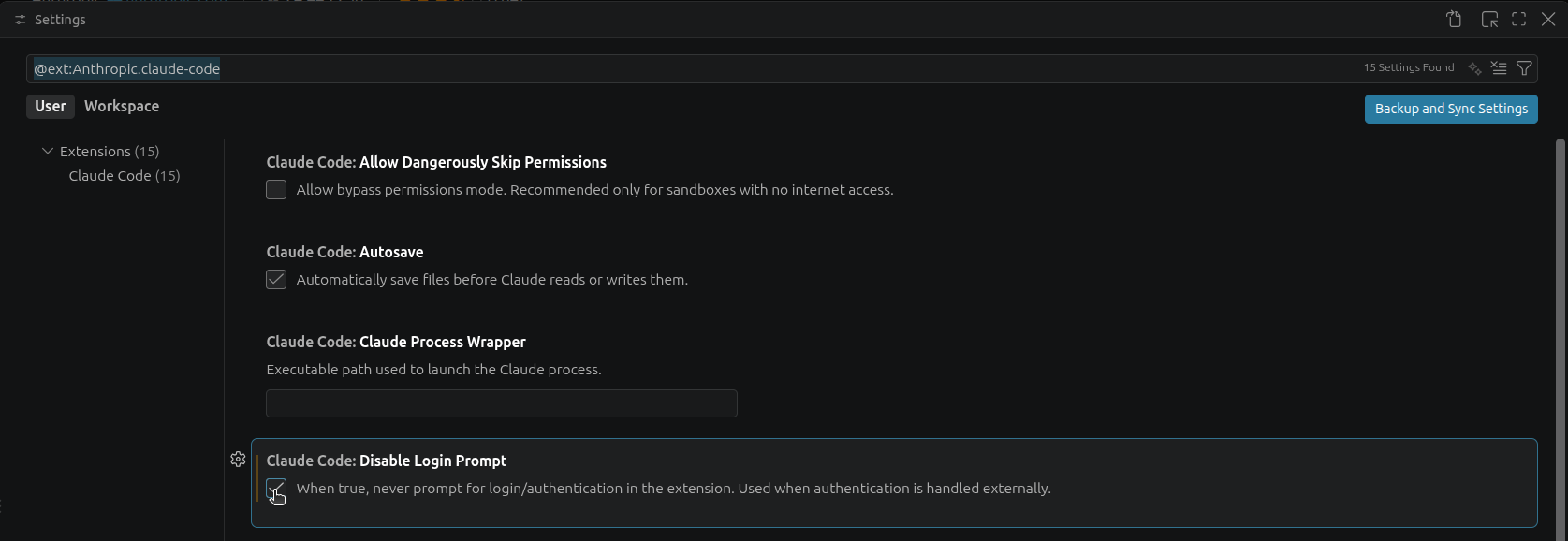
Find the setting entry "Claude Code: Disable Login Prompt" and check the box to enable it.
Configuring Environment Variables
Next you will need to configure the extension to use AI-VERDE as the backend. Set these in the extension's own "Claude Code: Environment Variables" setting. The extension checks this setting before launching, so it is the reliable place for your AI-VERDE credentials; values in ~/.claude/settings.json do not reach the extension's login check.
Find the setting entry "Claude Code: Environment Variables" and click on "Edit in settings.json".
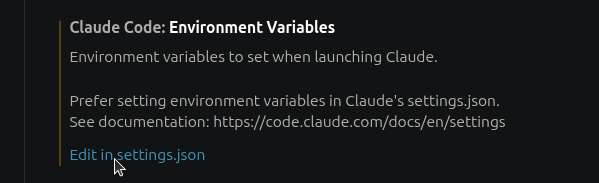
You will need to add the following environment variables to the claudeCode.environmentVariables section of the settings:
- add the AI-VERDE Anthropic base URL as ANTHROPIC_BASE_URL
- add your AI-VERDE API key as ANTHROPIC_API_KEY
- add your team model names for Opus, Sonnet, and Haiku
    "claudeCode.environmentVariables": [
        { "name": "ANTHROPIC_BASE_URL", "value": "https://llm-api.cyverse.ai"},
        { "name": "ANTHROPIC_API_KEY", "value": "<your-ai-verde-api-key>"},
        { "name": "ANTHROPIC_DEFAULT_OPUS_MODEL", "value": "<model name for opus>"},
        { "name": "ANTHROPIC_DEFAULT_SONNET_MODEL", "value": "<model name for sonnet>"},
        { "name": "ANTHROPIC_DEFAULT_HAIKU_MODEL", "value": "<model name for haiku>"}
    ],
For example, with the values filled in:
    "claudeCode.environmentVariables": [
        { "name": "ANTHROPIC_BASE_URL", "value": "https://llm-api.cyverse.ai"},
        { "name": "ANTHROPIC_API_KEY", "value": "sk-xxxxxxxxxxxxxxxxxxxxxx"},
        { "name": "ANTHROPIC_DEFAULT_OPUS_MODEL", "value": "my-team-claude-opus-5"},
        { "name": "ANTHROPIC_DEFAULT_SONNET_MODEL", "value": "my-team-claude-sonnet-5"},
        { "name": "ANTHROPIC_DEFAULT_HAIKU_MODEL", "value": "my-team-claude-haiku-4-5"}
    ],
Warning
This setting holds your API key. Add it to your VS Code user settings, not to a project's .vscode/settings.json, so the key doesn't get committed with your code.
Note
To obtain the AI-VERDE Anthropic base URL, simply remove /v1 (e.g. https://llm-api.cyverse.ai/v1 => https://llm-api.cyverse.ai).
Note
This setting only applies to the VS Code extension. To use Claude Code in the terminal as well, configure it separately as described in Claude Code (using Anthropic Models).
3. Restart VS Code
You may need to restart VS Code for the environment variables & settings to take effect.
4. Using the extension
The extension has chat functionality accessed from the leftmost bar in VS Code:
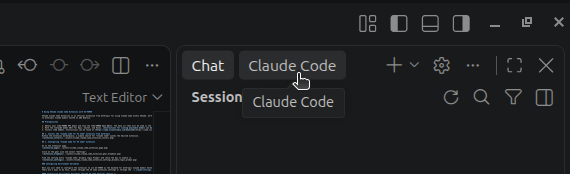
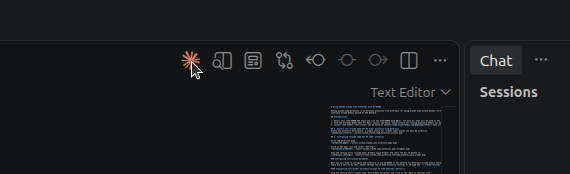
You can also open a chat window by clicking on the Claude logo: