Using Codex for VS Code with AI-VERDE
Codex is OpenAI's official extension for using Codex within VS Code. The extension reads the same configuration as the Codex CLI, so once Codex is set up to use AI-VERDE on your machine, the extension uses AI-VERDE too.
Prerequisites
- Obtain your AI-VERDE API key. Instructions can be found here.
- Note the model name you want to use. Instructions for listing available models can be found here. Coding agents work best with models that support tool use; see the "Supports Tools" column in Current CyVerse Models.
- Install VS Code. Instructions can be found at https://code.visualstudio.com/download.
1. Configure Codex to use AI-VERDE
Follow step 1 of the Codex guide to add the ai-verde provider and your model to ~/.codex/config.toml (%USERPROFILE%\.codex\config.toml on Windows). The extension reads this file. You don't need to install the Codex CLI itself for the extension to work.
Save your API key in ~/.codex/.env
The extension has no setting for environment variables, and it doesn't load your shell profile when VS Code starts from a desktop launcher. A VERDE_API_KEY exported in ~/.bashrc or ~/.zshrc may never reach it. Save the key in ~/.codex/.env (%USERPROFILE%\.codex\.env on Windows) instead. Codex loads this file on startup.
VERDE_API_KEY=<your-ai-verde-api-key>
For example, with the value filled in:
VERDE_API_KEY=sk-xxxxxxxxxxxxxxxxxxxxxx
Warning
This file holds your API key. Don't commit or share it.
Note
The Codex CLI reads the same ~/.codex/.env file, so this also sets up codex in the terminal.
2. Install the "Codex" extension from OpenAI
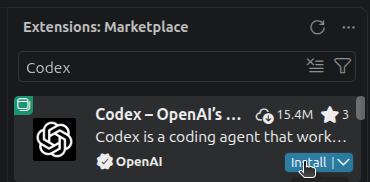
Within the extension marketplace, search for "Codex" and install "Codex – OpenAI's coding agent" published by OpenAI.
3. Restart VS Code
Restart VS Code so the extension picks up your configuration and API key. If you change ~/.codex/config.toml or ~/.codex/.env later, restart VS Code again.
4. Using the extension
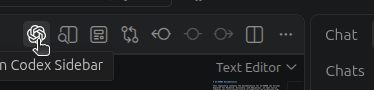
Open the Codex sidebar by clicking the Codex icon in the editor title bar:
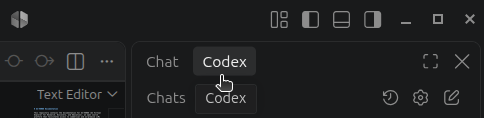
You can also select the "Codex" tab in the chat panel: