Getting Started with AI-VERDE Chat
This guide will help you get up and running quickly, so you can start making the most out of your experience with our AI-VERDE Chat.
1. Sign In
Before using the AI-VERDE chat interface, ensure you are signed in with your institution's credentials.
Note
AI-VERDE is currently only available to the University of Arizona community.
- Go to https://chat.cyverse.ai/.
- Click the Sign In button. You will be taken to CILogon.
- On CILogon, select your identity provider. For University of Arizona users, select The University of Arizona.
- Click the Log On button.
- Log in with your institution’s login process (for University of Arizona users, your NetID).
- You will be returned to AI-VERDE, signed in.
2. Select Your Team or Course
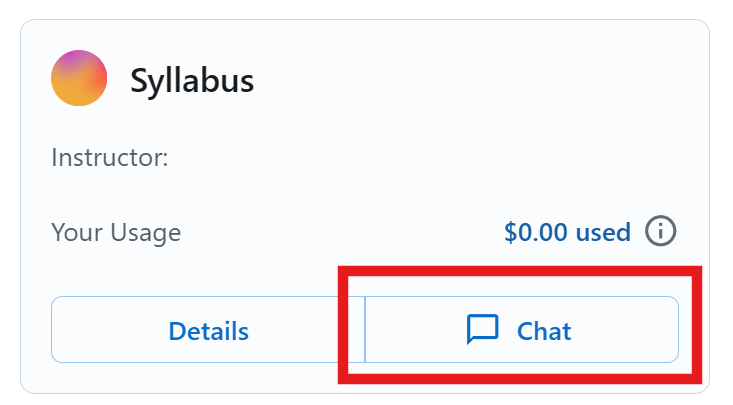
Once signed in, find your course or team card and click on the chat button.
3. Ask Your First Question
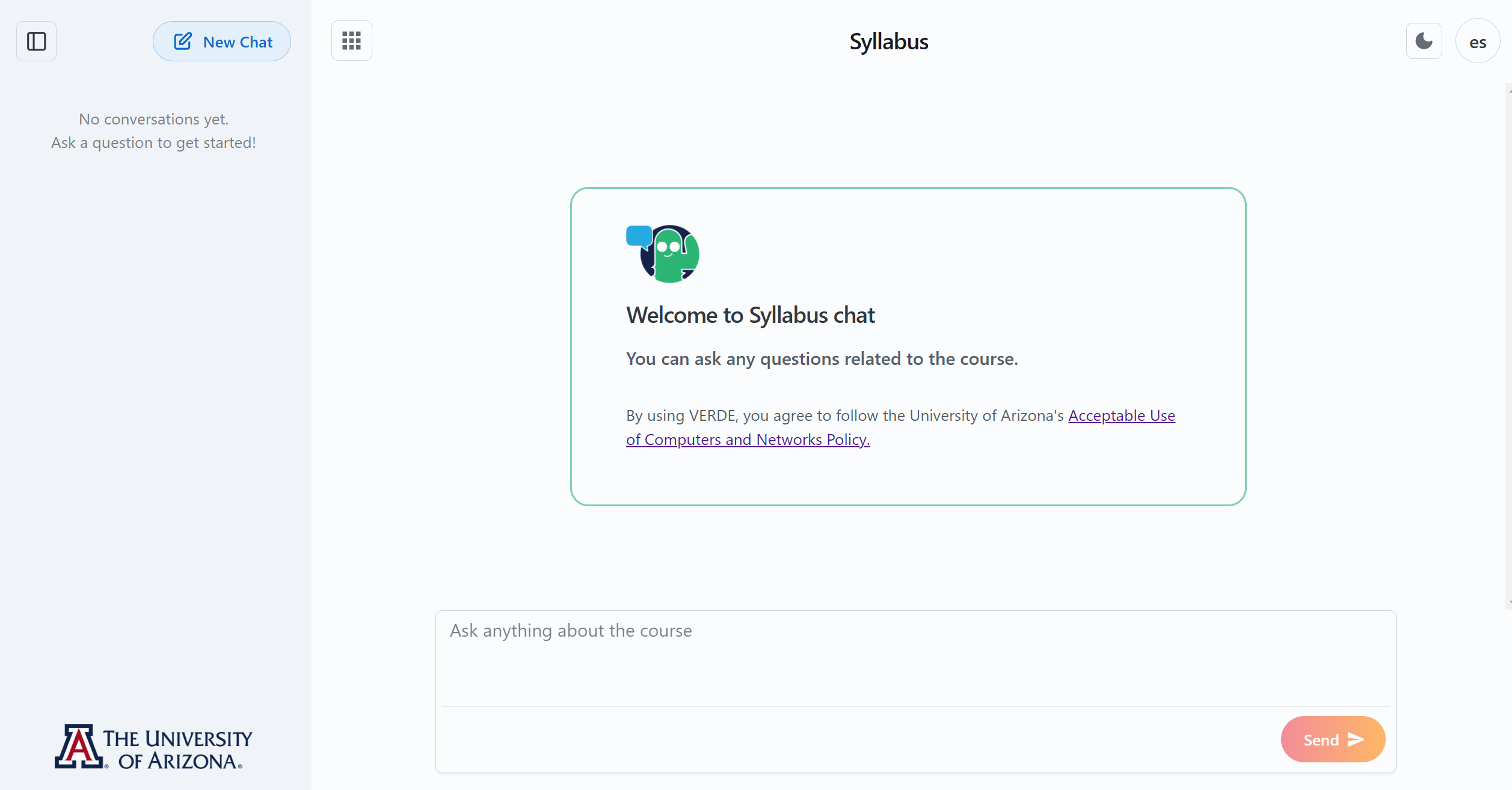
After clicking on the course or team card, the page will show a text box where you can interact with AI-VERDE. You can then:
- Type a question directly in the chat box (e.g., "Why is the sky blue?").
- Press Send to submit.
- Receive a Response within seconds, tailored to your query.
4. Continue the Conversation
You can ask follow-up questions for further clarification, request examples, or explore related topics.
Example
- Initial Question: "Explain the concept of ecosystems in biology."
- Follow-Up: "Can you provide examples of different types of ecosystems?"
- Further Detail: "How does biodiversity impact ecosystem stability?"
Tips for Using the Chat Interface
- Be Specific: Detailed questions yield the best responses.
- Explore Broadly: If your team or course is not targeting specific documents, you can ask about a wide range of topics or request explanations for academic concepts.
- Engage in Multi-Step Conversations: If you need deeper insights, use follow-up questions to refine the responses.
Usage Budgets
Each course or team has a usage budget, and some courses also set a budget for each student. By default, budgets are monthly and reset on the 1st of each month. Some courses use a different reset schedule. If you reach your budget, you can use AI-VERDE again once it resets. Ask your instructor or team lead if you're unsure which schedule applies.
Support and Feedback
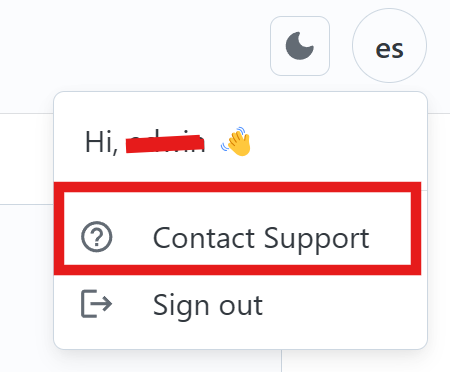
If you encounter issues or have suggestions, reach out to our support team using the built-in support chat: